Documentation
Getting Started
Reel is a Ghost theme built for a full-screen, swipeable reel feed — every post takes the whole screen, and one swipe or scroll moves to the next.
To install:
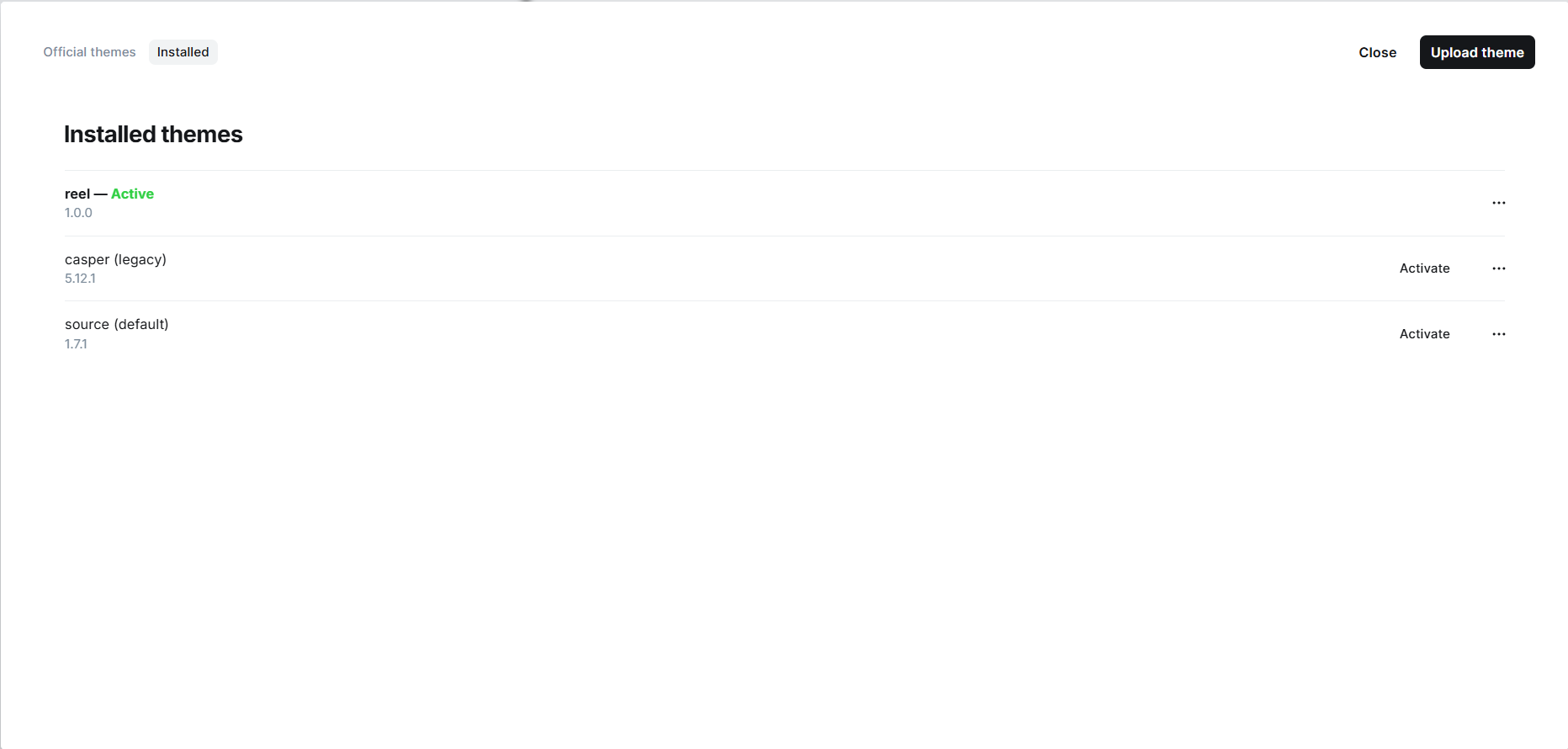
- In Ghost Admin, go to Settings → Design & Branding → Change theme → Upload theme.
- Select the Reelfeed
.zipfile. - Click Activate on the uploaded theme. Uploading alone does not activate it — this step is easy to miss.
- Hard-refresh your site (Ctrl+Shift+R / Cmd+Shift+R) to clear any cached assets.
Requires Ghost 6.38 or later.
Navigation Setup
Reel's dropdown navigation uses a prefix system typed directly into the label field in Ghost Admin → Settings → Navigation:
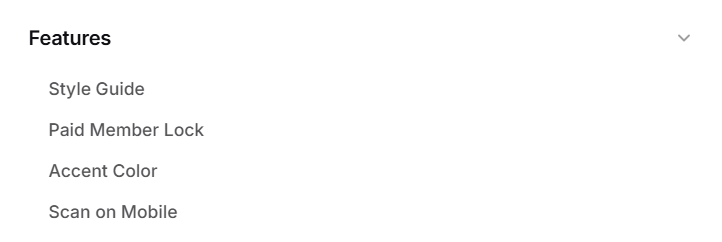
#Name— starts a dropdown group-Name— a regular item inside that group+Name— the last item inside the group (closes it)%Name— starts a "more" (•••) dropdown group@Name— a regular item inside a%group$Name— the last item inside a%groupName(no prefix) — a plain top-level link
Example:
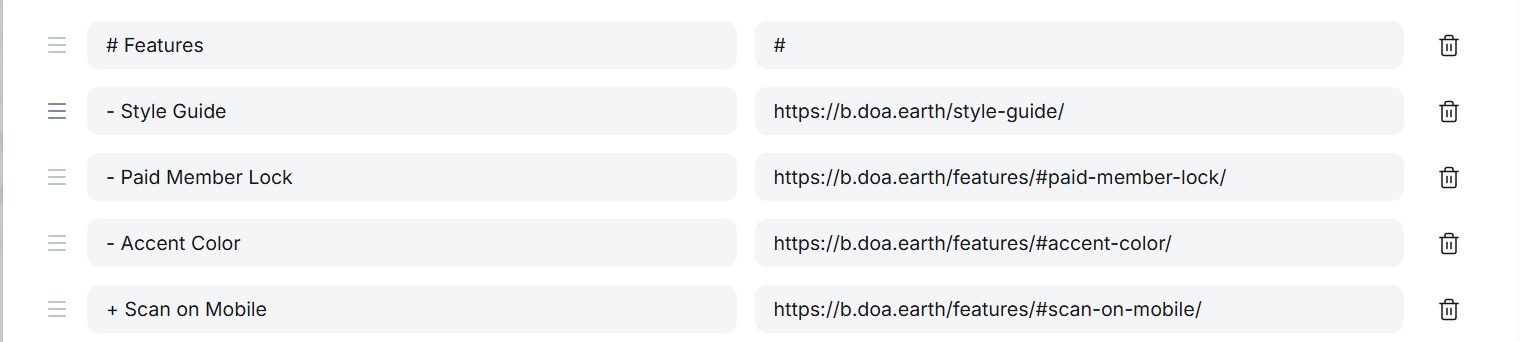
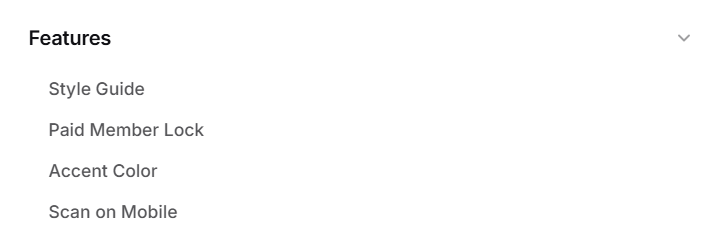
This renders as a "Features" dropdown containing three links, with "Scan on Mobile" closing the group.
Homepage Feed Settings
In Settings → Design & Branding → Customize, under the Homepage group:
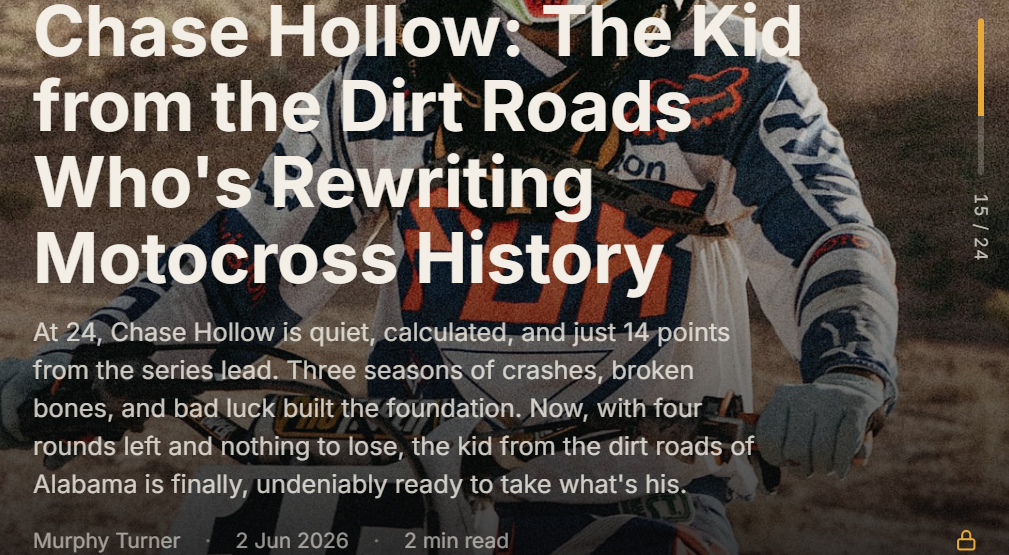
- Show rail indicator — toggles the thin progress rail on the right edge of the feed showing your position (e.g. "3 / 24").
- Show feed tag — toggles the tag/category eyebrow shown on each feed card.
- Show feed title — toggles the post title on each feed card.
- Show feed excerpt — toggles the short excerpt line on each feed card.
- Show feed meta — toggles the author, date, and reading-time line on each feed card. Turning this off does not hide the paid-member lock badge — it repositions to a small floating badge in the corner of the card instead.
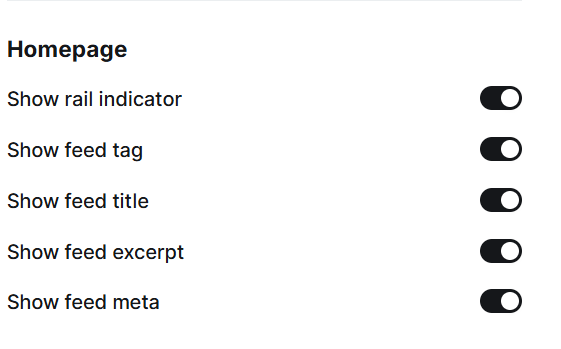
Each of these is independent — you can mix and match.
Post display: Hero Photo or Plain Text
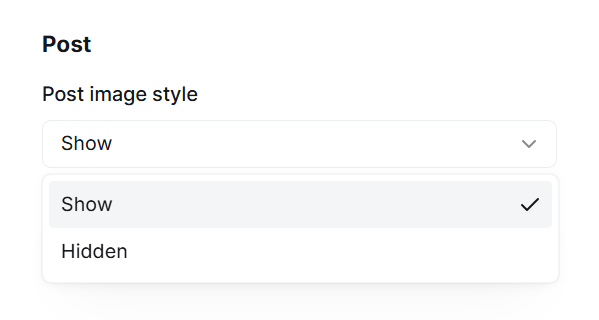
Under the same Customize panel, Post image style is a site-wide switch with two options:
- Show — every post displays as a full-bleed dark hero with the feature image.
- Hidden — every post displays as a plain text header (tag, title, byline) with no photo.
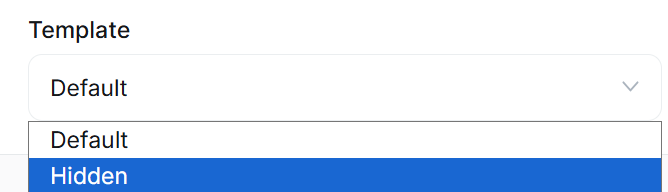
If you want one specific post to break from the site-wide setting, open that post in the editor, click the Template dropdown in the right-hand Settings panel, and choose Hidden. This forces the plain header on that post only, regardless of the global switch.
Ghost Pages (Documentation, Style Guide, Features, Tags, Authors, About, etc.) always use the plain header automatically — you don't need to set anything for them.
The Features Page
Reel ships with a dedicated template for a features overview page. To activate it:
- Create a new Page in Ghost Admin.

- Set the slug to exactly
features(title can be anything, but the slug must match).
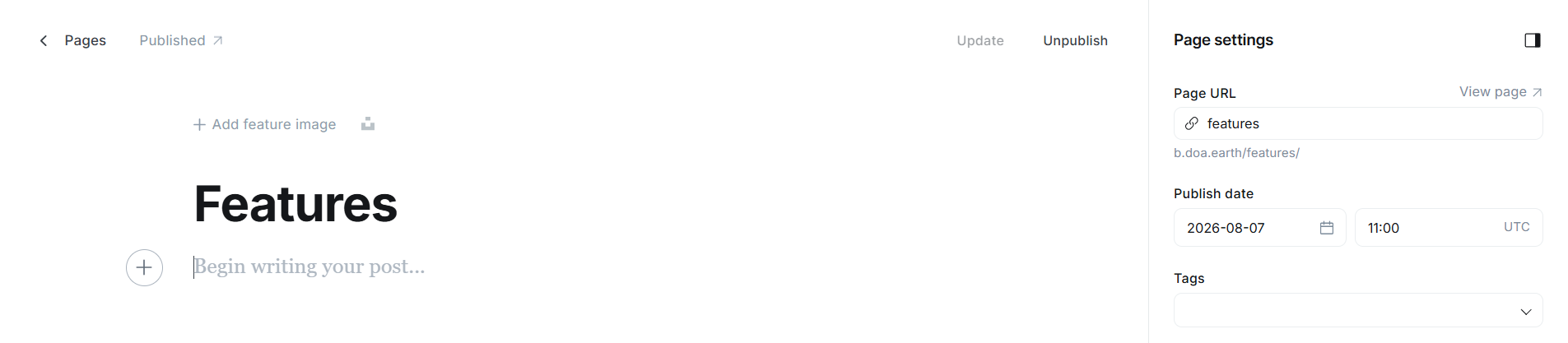
- Publish it. The page content itself doesn't matter — the template renders its own hard-coded sections.
Add anchor links to it from your navigation, e.g. https://yoursite.com/features/#accent-color.
The Style Guide page
This is a real content page meant to demonstrate every Ghost editor card (headings, bookmark, quote, gallery, buttons, toggles, callouts, embeds, and so on) styled to match Reel.
- Create a new Page, slug
style-guide.

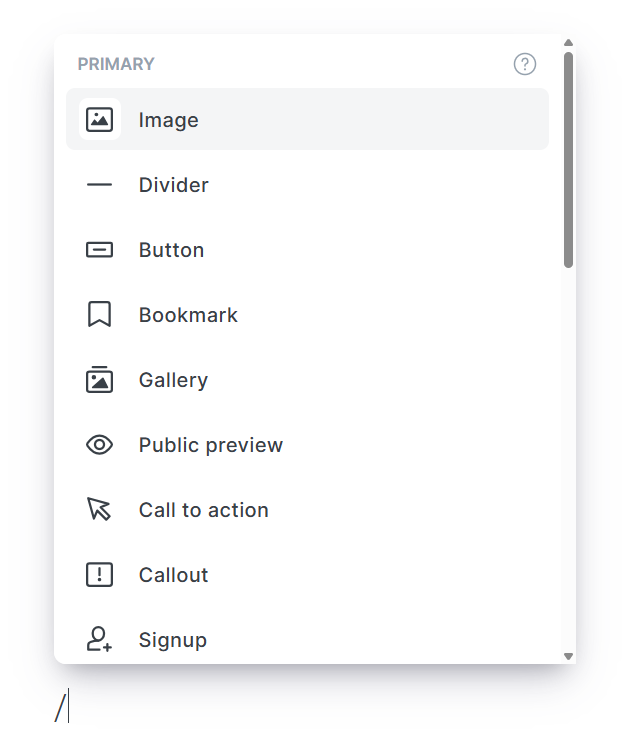
- Build the content using the Ghost editor's card menu (
/or the+button) — one card per feature you want to showcase.
- Publish.
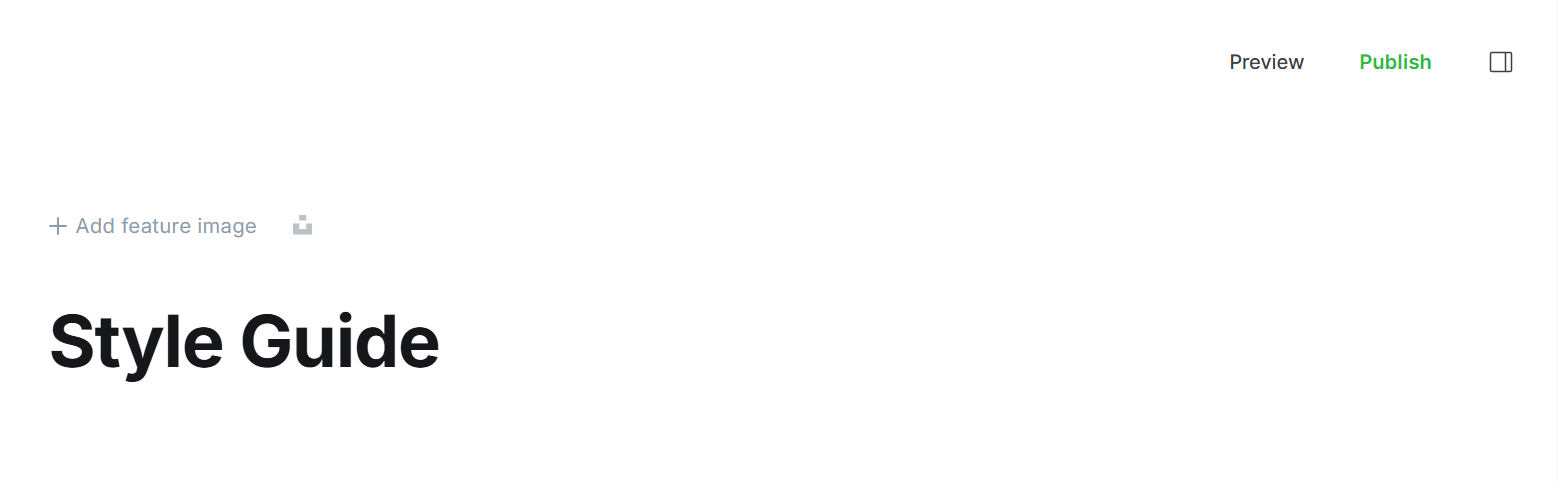
Because this page has no feature image, it automatically uses the plain header.
The Tags Page
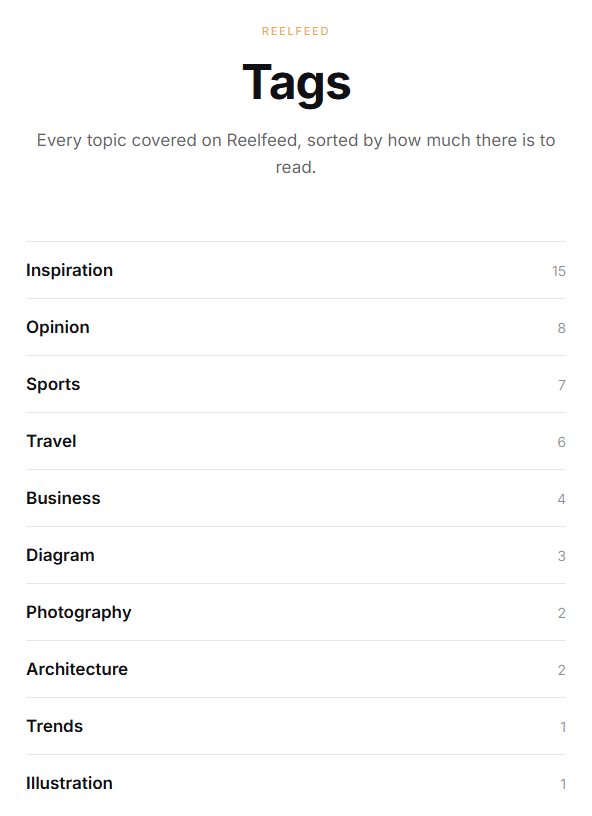
Lists every tag on the site, sorted by number of posts, with post counts.
- Create a new Page, slug exactly
tags.
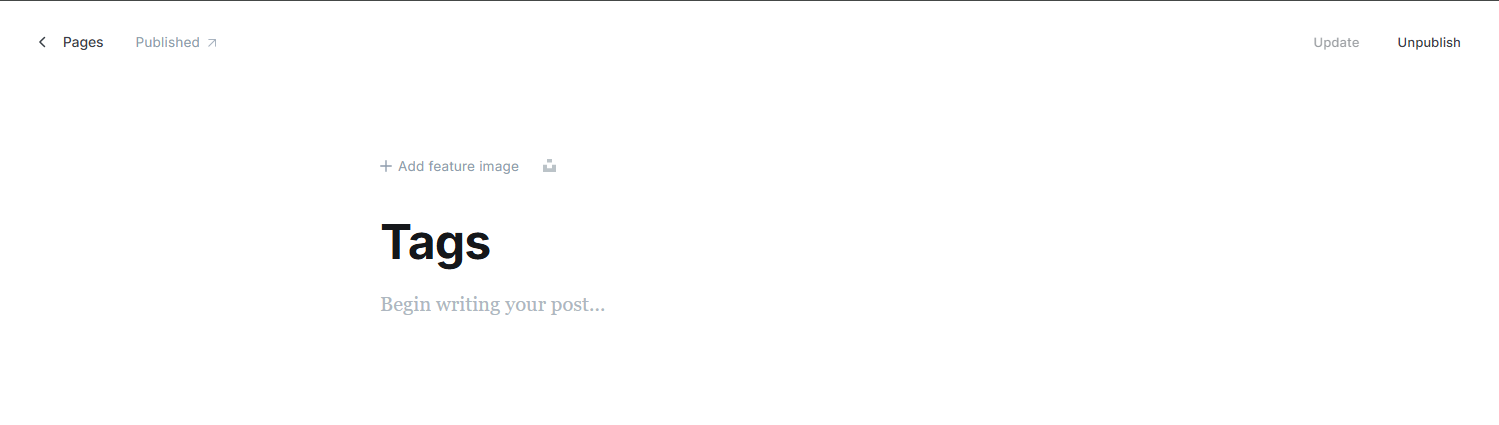
- Publish it — no content needs to be added, the list is generated automatically from your site's tags.
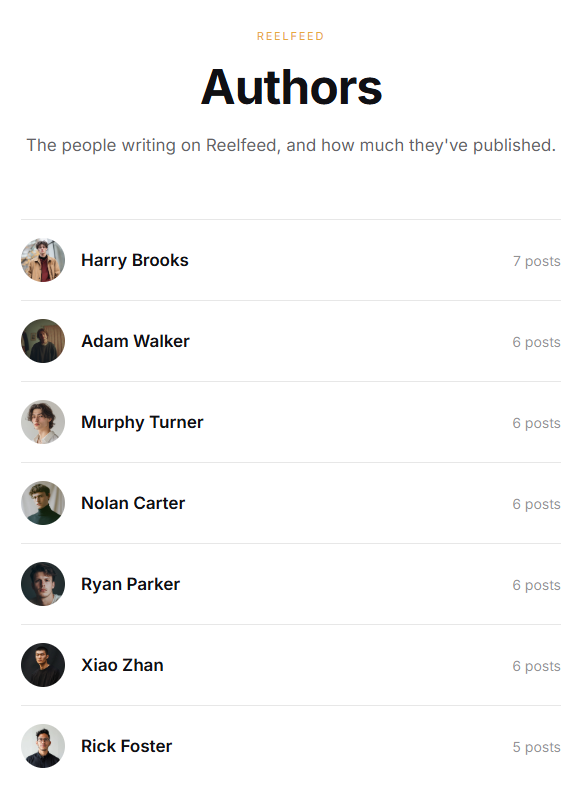
The Authors Page
Lists every staff member with a published post, sorted by post count, showing their avatar (or initial, if no photo is set), name, location, and post count.
- Create a new Page, slug exactly
authors.
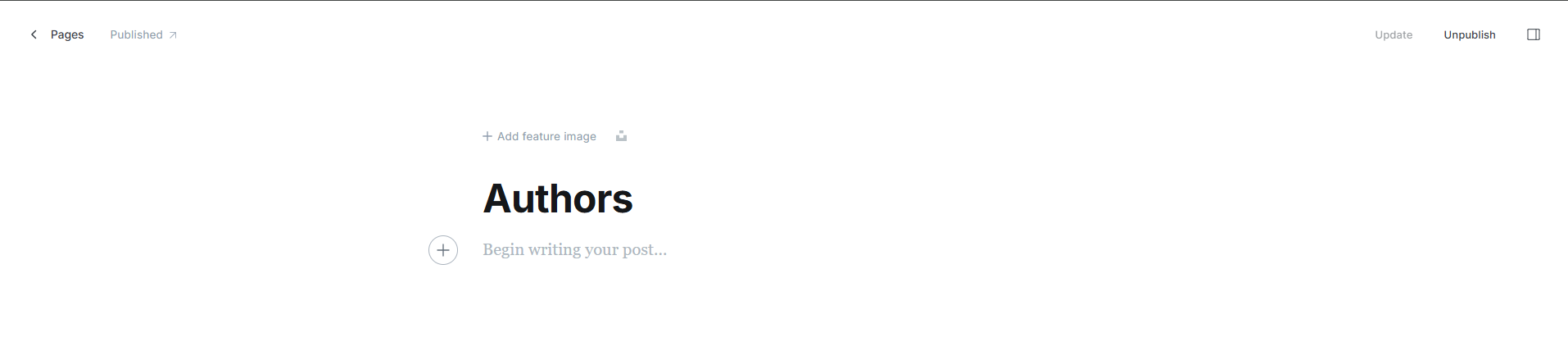
- In Ghost Admin → Staff, click each author and fill in their Location field if you want it to show.

- Publish the page — content is generated automatically.
Paid Member Lock
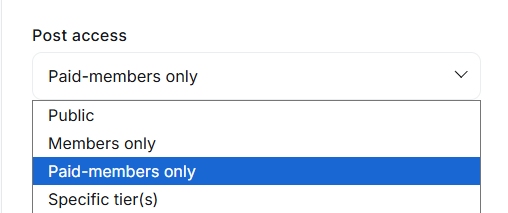
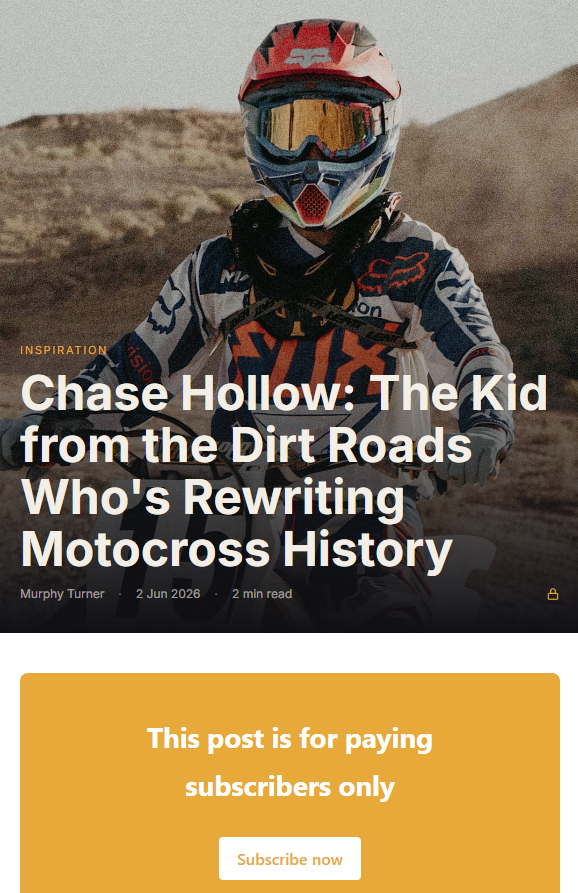
No setup required. Set any post's visibility to Paid Members Only in the post's Settings panel, and a small lock icon appears automatically on its feed card and on the post itself.
Accent Color
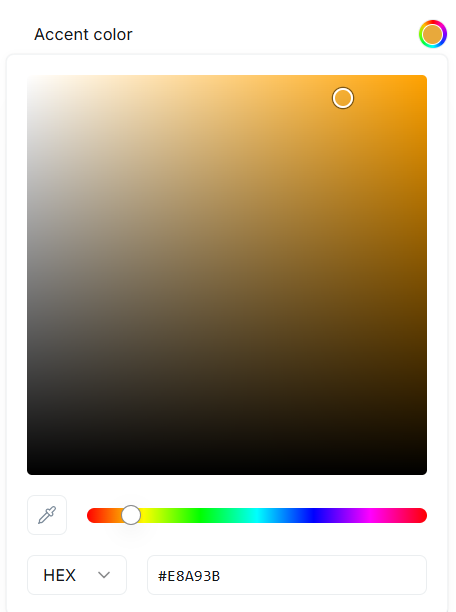
Reel's amber highlights (tags, the progress rail, links, buttons) follow Ghost's own Accent Color setting. Change it in Settings → Design & Branding → Accent color — no code or theme setting involved.
Scan on Mobile
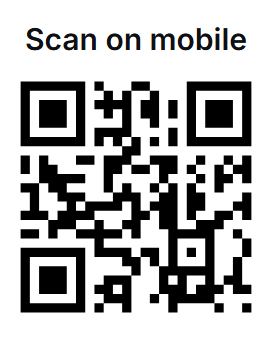
A floating QR widget appears in the bottom-right corner on desktop screens (661px and wider). It encodes the URL of whatever page you're currently viewing, so scanning it opens the exact same page on your phone. It's self-hosted — no third-party service is involved, and no setup is needed.
Social Accounts in The Footer
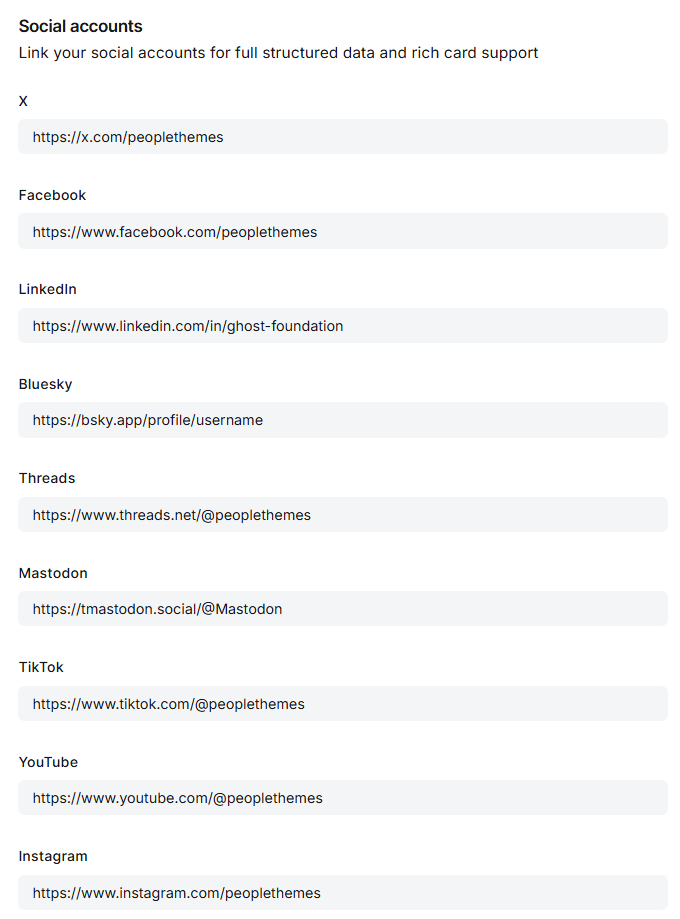
The social icons in the footer are pulled directly from Settings → General → Social accounts. Fill in the fields for the platforms you use (X, Facebook, LinkedIn, Instagram, Threads, Mastodon, TikTok, YouTube, Bluesky) and leave the rest blank — Reel only shows icons for accounts you've actually filled in.

Troubleshooting
I made a change and the site still looks the same. Most likely the updated theme zip was uploaded but not re-activated in Ghost Admin, or your browser has the old CSS/JS cached. Re-activate the theme and hard-refresh.
A page I created isn't using the layout I expected. Double-check the Page's slug is exactly right (features, tags, authors, style-guide) — these templates are matched by slug, not by title.
The Template dropdown in the post editor only shows "Default". That's expected unless you've added a custom-*.hbs file to the theme — Reel ships with one such option ("Hidden") for forcing the plain header on an individual post.
Contents